

1. Sign in and confirm your workspace
Open app.geoly.ai and sign in. Before changing settings, confirm the organization, plan, and active brand shown in the workspace. Your available data and actions depend on:- the organization you are working in;
- the active brand;
- your account permissions; and
- the plan and data scope available to that workspace.
2. Switch brands and open Brand settings
Use the brand menu in the left navigation to:- view the active brand;
- switch to another authorized brand;
- choose Add Brand when your account has permission to create another brand; and
- open Brand settings for the current brand.
3. Configure brand information and matching rules
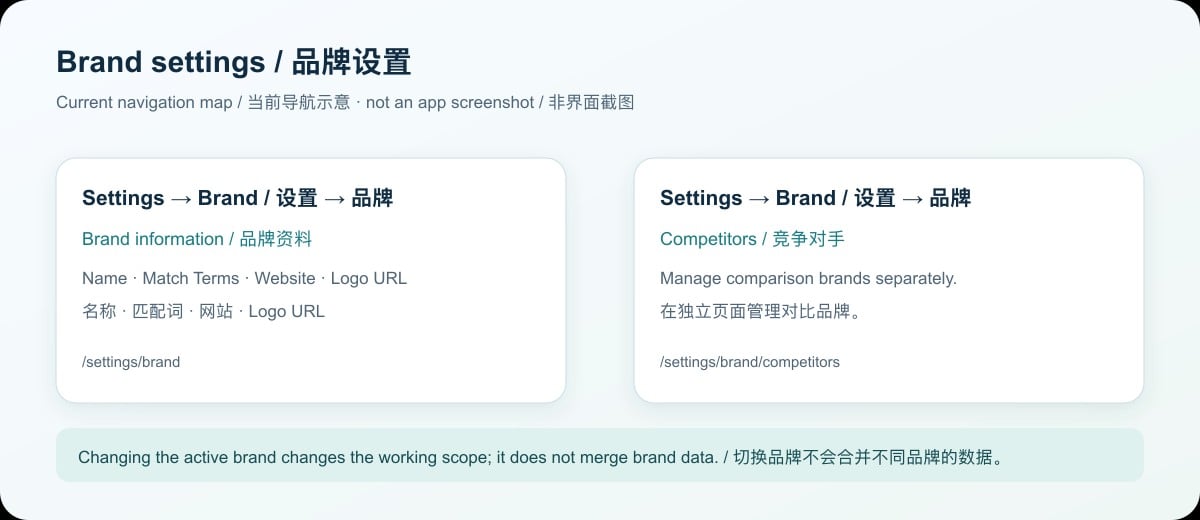
The current Brand settings page includes:- Brand Name: the name shown in GEOly.
- Match Terms: brand names, aliases, product names, and spelling variants used to detect mentions in AI answers. Separate multiple terms with commas.
- Website: the official brand website URL.
- Logo URL: optional; if empty, GEOly can use the website favicon.
- Competitors: configured through the separate Settings → Brand → Competitors page.
How to write Match Terms
Include the official brand name, common spelling or capitalization variants, important product lines, and common short names. Example: dji, DJI, Osmo, Mavic. Avoid generic words that are not unique to your brand. Overly broad Match Terms can increase false matches. Save the settings, then review later Monitoring results to confirm that brand detection is accurate.How to set the Website
Enter the official site URL and confirm the domain. The Website field is part of the brand profile; it does not prove that every AI answer cites the site or that the site receives recommendation traffic.4. Manage competitors
Open Settings → Brand → Competitors. Competitors are managed separately from the brand profile. GEOly uses configured brand names and aliases for text matching in AI answers. To keep comparisons useful:- add brands that are genuinely relevant to your market;
- use stable, recognizable names;
- add common aliases when needed; and
- remove competitors that are no longer relevant.
5. Organization and account permissions
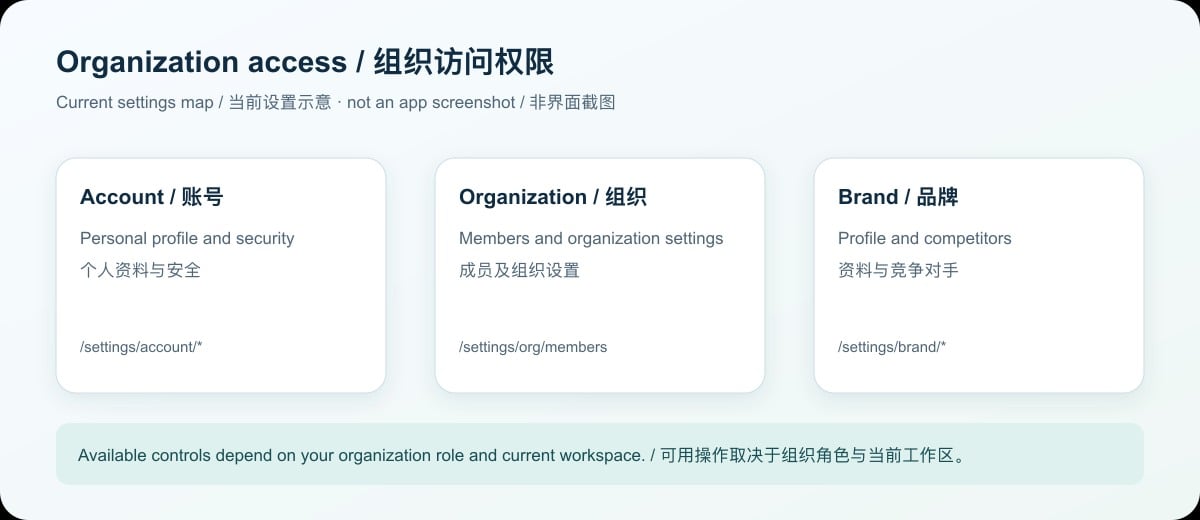
- confirm that each member is in the correct organization;
- check the active brand and data scope before interpreting results;
- grant only the access needed for the task; and
- use the controls shown in the current workspace rather than assuming every account has the same management menu.
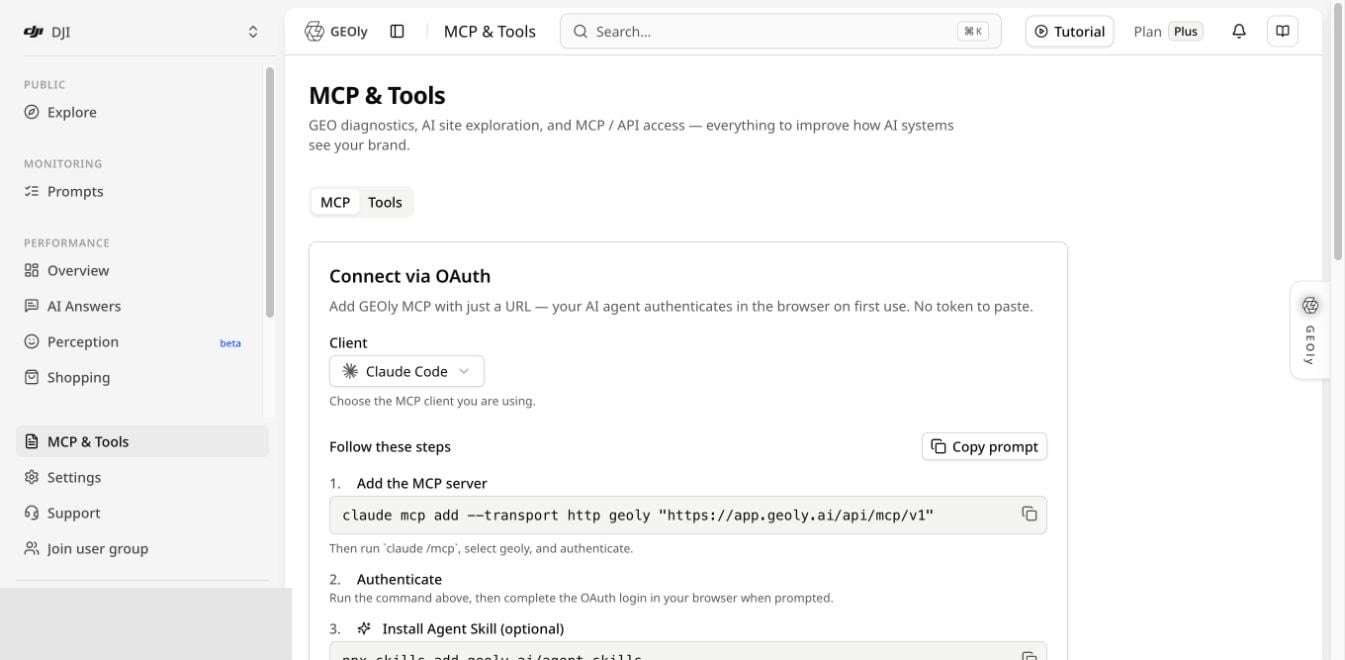
6. MCP and external AI clients
7. Recommended first-time setup
- Sign in and confirm the organization, active brand, and plan scope.
- Open Brand settings and review Brand Name, Website, and Logo URL.
- Add complete Match Terms and save.
- Add the competitors you want to track.
- Create or review Monitoring Prompts, platforms, and date ranges.
- Run a read-only check to confirm brand detection and result scope.
- If you need an external AI client, open MCP & Tools → MCP and complete OAuth.
8. Common issues and data boundaries
- A brand may be missing because a Match Term is incomplete, the spelling differs, coverage is limited, or the query scope is different.
- A competitor may be absent because of name matching, platform, language, date range, or sample coverage; absence does not prove that the competitor does not exist.
- AIGVR, Mention Rate, and Citation Rate are monitored-brand signals. Do not mix them with public-industry SoM, AI traffic estimates, or estimated revenue.
- Updating brand information, Match Terms, or competitors does not by itself prove a change in ranking, traffic, conversion, or revenue.
- Review original AI answers, official website information, and first-party business data before making an important decision.